.png "H96 Max Android TV Box video reviews and tutorials on YouTube")
.png "H96 Max Android TV Box photos and lifestyle shots on Instagram")



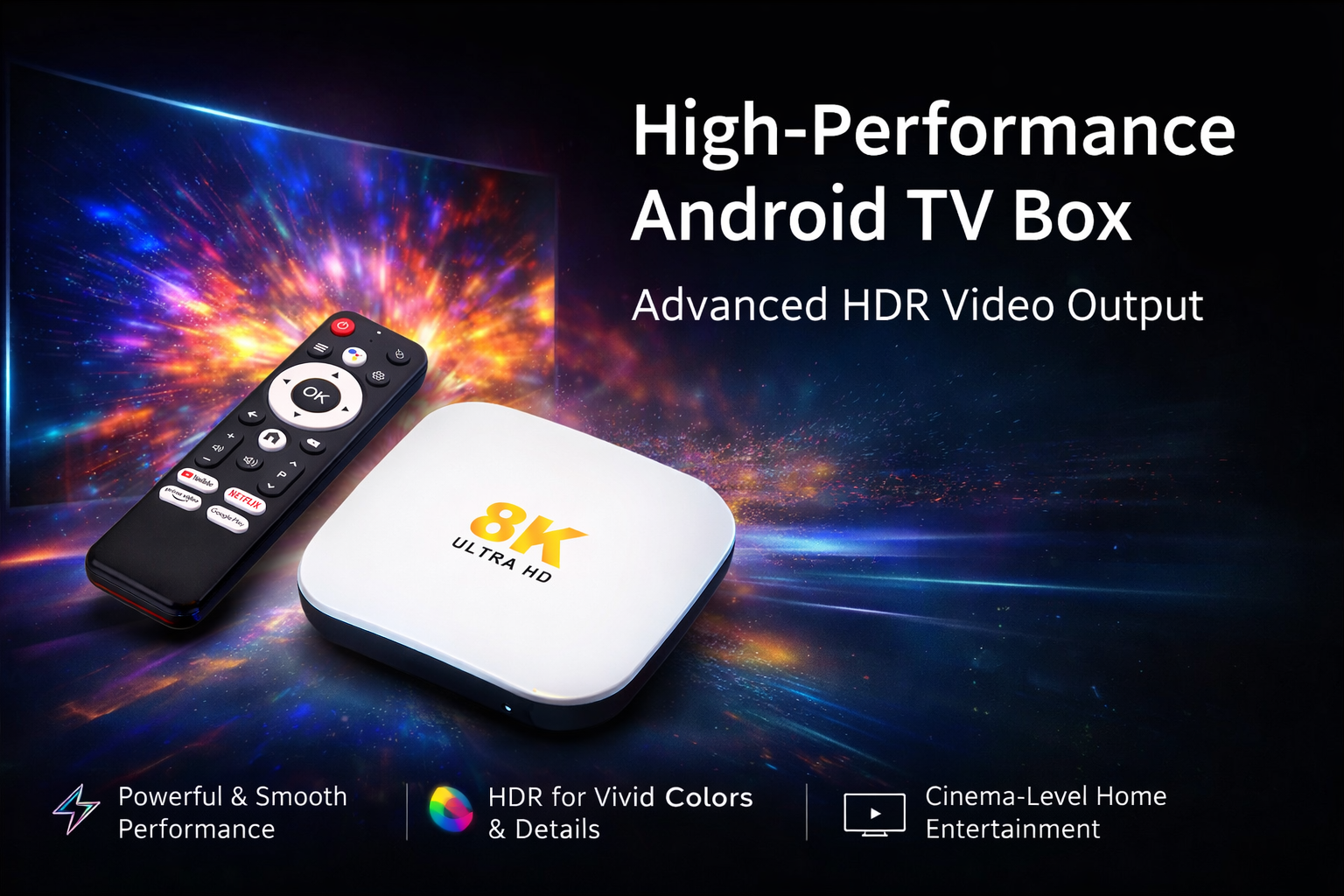
Achieving Optimal Android TV Box and TV Compatibility
Android TV Box Display Settings are at the core of achieving top-tier visual performance for any television setup. Knowing how to configure these settings can dramatically improve both picture quality and your viewing experience. This article provides a highly technical and practical approach to optimizing your Android TV Box, focusing on display settings, HDR, color calibration, aspect ratio, and output, following industry standards and advanced techniques.
Understanding Android TV Box Display Settings
To start, accessing your Android TV Box Display Settings is essential. Navigate to Settings > Display on your device. Here, you will see several options that influence output signal, image clarity, and compatibility with your TV panel. Ensuring these parameters are set correctly is critical for both SDR and HDR content. The display settings panel usually allows for adjustments to resolution, aspect ratio, HDR toggling, and output modes.
Resolution Settings and Best Practices
Within the Android TV Box Resolution Settings, select the highest supported resolution of your TV, such as 4K (3840 x 2160) for modern displays. Avoid settings that upscale or downscale beyond your TV’s native capabilities, as this can lead to scaling artifacts. Advanced settings may offer refresh rate options—match this to your content source (e.g., 24Hz for films, 60Hz for sports) to minimize motion judder. Professional installations often enable ‘auto switch’ modes for dynamic adjustment.
Optimizing HDR Settings for Maximum Dynamic Range
Android TV Box HDR Settings enhance image contrast and color range. To enable HDR, ensure your TV and HDMI cable are HDR-compatible. Then, in your Android TV Box menu, enable HDR output (Settings > Display > HDR). Some boxes allow toggling between HDR10, HLG, or Dolby Vision; select the format that matches your TV’s support. For accurate results, verify HDMI Deep Color or Enhanced Format is enabled on your TV’s HDMI port. For advanced users, fine-tune HDMI signal range and bit depth within the TV box settings for superior gradation.
Professional Color Calibration Techniques
Proper Android TV Box Color Calibration aligns your TV’s output with content creators’ intentions. Use calibration discs or software (like CalMAN or HCFR) and reference test patterns. Adjust brightness, contrast, color temperature, gamma, and individual RGB gain and bias. Advanced users can access 10-point or 20-point calibration, fine-tuning grayscale and color accuracy. Always calibrate in the viewing environment, considering ambient light. Document each change and repeat for HDR and SDR modes independently. This precision approach yields lifelike images and optimal color balance.
Aspect Ratio Adjustments and Output Settings
Correct Android TV Box Aspect Ratio Settings are essential for undistorted images. Choose ‘Auto’ for most content, letting the box match source material. If needed, manually set 16:9 for widescreen or 4:3 for legacy content, ensuring the TV’s own aspect controls do not override your selection. In the Android TV Box Output Settings, select the optimal signal type (HDMI, Component, etc.), bit depth (8, 10, or 12-bit), and audio output (PCM, passthrough, or bitstream) for best compatibility with home theater setups. Always use certified high-speed HDMI cables for 4K HDR signals.
How to Adjust Display Settings on Android TV Box
Step-by-step, go to Settings > Display. Adjust resolution to your TV’s native capability. Enable HDR if supported. For color calibration, use professional tools, adjust brightness and contrast, and confirm color balance with test patterns. Review aspect ratio under display options, then select your preferred output settings. Save changes and test with varied content (SDR, HDR, movies, sports). This method ensures optimal settings and uncovers compatibility issues before regular viewing.
Advanced Tips and Troubleshooting
If you encounter color banding, incorrect black levels, or motion issues, revisit your Android TV Box Display Settings. Lower bit depth or limited range may cause color banding—try switching to full RGB and increasing bit depth. For HDR issues, verify both box and TV firmware are up-to-date, and always use the TV’s HDMI port with the highest bandwidth. For persistent problems, consult manufacturer technical resources or professional calibrators, referencing your exact TV and TV box models. Document any firmware changes as updates can reset calibration profiles.
Summary
Properly setting up your Android TV Box Display Settings guarantees optimal performance, color accuracy, and compatibility for any television. Following the steps above ensures both casual viewers and technical users enjoy maximum visual quality, whether watching SDR or HDR content, with all settings tailored for professional standards.
READ MORE
Android TV Box Remote Recovery: 3 Fast Solutions for Not Working Issues
How to Quickly Install APKs to Android TV Box Using Your Phone
Comprehensive Guide to Resolving Android TV Box Error Messages
Android TV Box Voice Control Remote Setup: From Alexa, Google Assistant to Local Solutions
Top Setup Tips for the Best Android TV Box for Seniors and Kids
HDMI, CEC, and Resolution: Step-by-Step Guide for Home Theater Setup
New User’s Essential Guide: Complete Android TV Box First-Time Installation Process
Quick Links

.png "Watch H96 Max Android TV Box reviews on our YouTube channel")

.png "Explore H96 Max product photos on Instagram")