.png "H96 Max Android TV Box video reviews and tutorials on YouTube")
.png "H96 Max Android TV Box photos and lifestyle shots on Instagram")



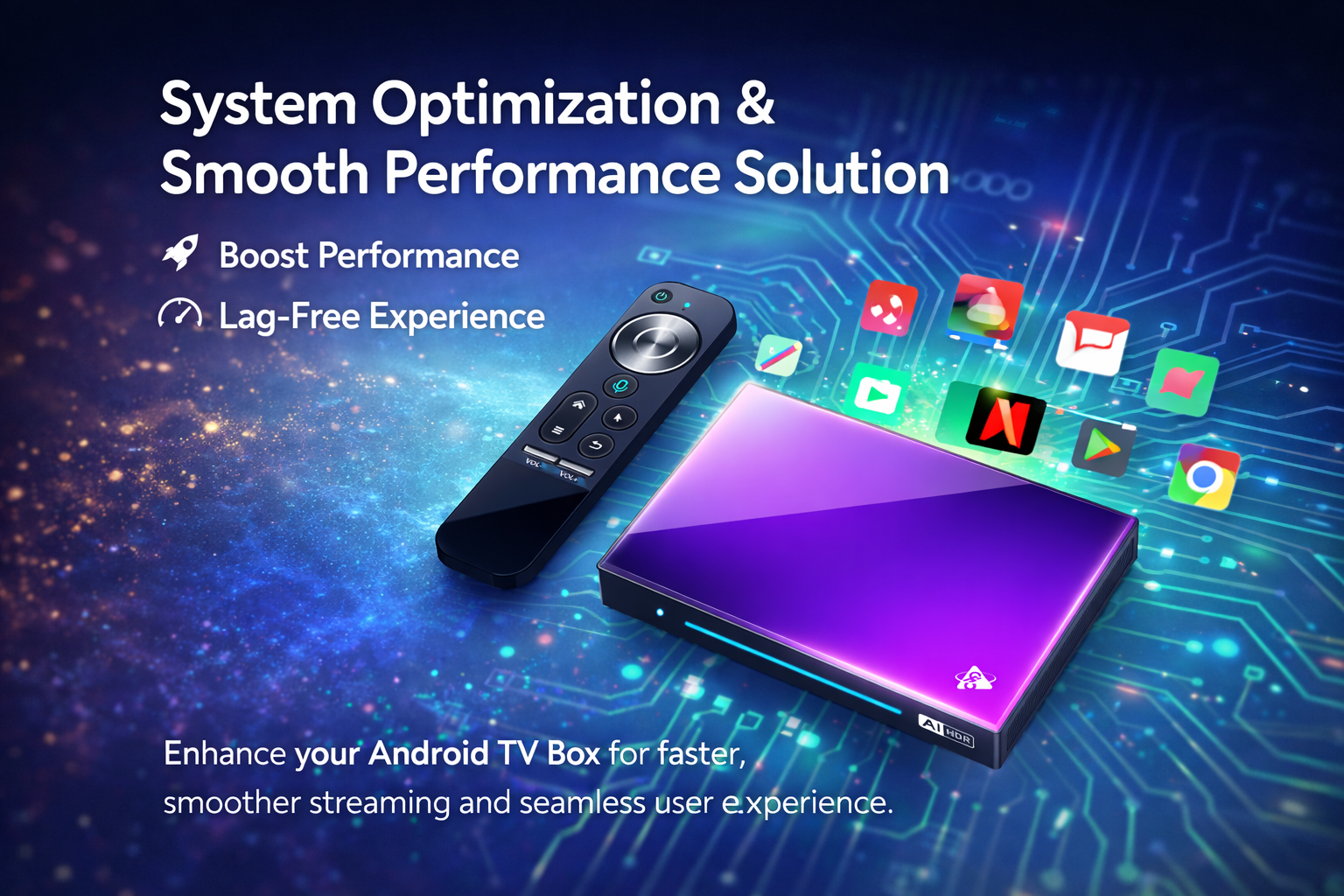
In-Depth Android TV Box Troubleshooting for Error Messages and Solutions
Android TV Box Troubleshooting is a vital skill for users and technical support teams alike. In this comprehensive guide, we will explore the most common problems, decipher error messages, and provide actionable solutions. Whether you are an end user facing daily glitches or an OEM searching for advanced troubleshooting methods, this article aims to deliver pure professional value—no sales talk, just technical expertise.
Understanding Android TV Box Common Problems
Android TV boxes are sophisticated devices that enable a seamless streaming experience, but they are not immune to technical hitches. Users often encounter issues such as boot failures, unresponsive apps, system crashes, and connectivity errors. Android TV box common problems can arise from hardware limitations, outdated firmware, or incompatible applications. Recognizing the nature and frequency of these problems is the first step in effective Android TV Box Troubleshooting.
For OEMs and manufacturers, preemptively addressing these challenges helps reduce support tickets and boosts end-user satisfaction. Applying a systematic troubleshooting approach, as outlined in this Android TV box OEM troubleshooting guide, is essential for maintaining product reliability and reputation.
Decoding Android TV Box Error Messages
Error messages serve as the first indicator of what might be going wrong inside your Android TV box. The most frequently reported Android TV box error messages include “No Signal,” “App Not Responding,” “Network Connection Failed,” and “Firmware Update Error.” Each message typically corresponds to a specific category of problem—ranging from HDMI port failures to app compatibility issues or even power supply inconsistencies.
Understanding these messages allows users to take targeted actions rather than resorting to factory resets or unnecessary repairs. When tackling Android TV Box Troubleshooting, always note the exact wording of error messages, as this detail can be crucial for successful diagnosis.
Step-by-Step Solutions for Android TV Box Not Working
If your Android TV box is not working as expected, a stepwise approach is recommended. First, inspect all physical connections—power cables, HDMI ports, and Ethernet or Wi-Fi connections. Loose connections can cause intermittent failures and contribute to Android TV box not working errors. Next, assess the health of the power adapter and ensure the voltage matches the device specification.
A common solution involves a soft reset: unplug the device for at least 60 seconds before reconnecting. For software-based issues, consider clearing cache and app data, uninstalling unnecessary applications, and updating the firmware to the latest version available from the manufacturer.
For OEMs and advanced users, this is also the point where Android TV box manufacturer technical support becomes crucial. Detailed technical logs and error codes should be collected and analyzed to pinpoint root causes, especially when troubleshooting in a factory or bulk deployment scenario.
Advanced Android TV Box Issues and Solutions
Certain problems require a more technical response. Issues like device overheating, frequent reboots, or system lag may be linked to hardware defects, poor ventilation, or conflicts in system updates. Android TV box issues and solutions at this level often involve:
Replacing faulty heat sinks or thermal pads to address overheating.
Performing a full factory reset after backing up critical data.
Re-flashing custom firmware designed specifically for your hardware revision.
Adjusting system settings for optimal performance, such as resolution or decoding preferences.
OEMs often provide detailed Android TV box OEM troubleshooting guides to authorized repair centers and distributors. These documents include board-level schematics, firmware update procedures, and test points for hardware diagnostics.
Common Scenarios and Practical Fixes for Android TV Box Problems and Fixes
Scenario 1: “No Signal” on Display
– Confirm HDMI cable integrity and use a different port.
– Test the box with another TV.
– Reset display settings via recovery mode if possible.
Scenario 2: Apps Keep Crashing
– Clear the app cache and update or reinstall the application.
– Ensure sufficient storage space is available.
– Update system firmware if a specific app frequently fails.
Scenario 3: Network Connectivity Issues
– Restart your router and check network credentials.
– Forget and reconnect to Wi-Fi.
– Perform a network speed test directly from the Android TV box settings menu.
Scenario 4: System Fails to Boot or Stuck in Boot Loop
– Attempt to enter recovery mode and wipe cache partition.
– Flash factory firmware using an official image from the Android TV box manufacturer technical support resources.
Each of these Android TV box problems and fixes aims to minimize downtime and eliminate the need for costly replacements or service calls.
Proactive Measures for Android TV Box OEMs and Bulk Buyers
Proactive troubleshooting and technical documentation are essential for OEMs managing large-scale deployments. Providing detailed Android TV box OEM troubleshooting guides, custom firmware updates, and 24/7 technical support ensures that both resellers and end users receive timely assistance. Establishing a feedback loop with your manufacturer’s engineering team also allows for continuous improvement and rapid response to new error message patterns or emerging hardware faults.
Conclusion: Technical Support and Service Options
Effective Android TV Box Troubleshooting is not just about resolving today’s error messages but also about creating a robust support ecosystem for future challenges. Whether you are troubleshooting a single device or managing a bulk shipment, leveraging manufacturer technical support and accessing comprehensive OEM troubleshooting guides is essential.
For organizations seeking factory support, OEM / ODM service, custom firmware development, or bulk order technical assistance, partnering with a capable Android TV box manufacturer ensures your products remain reliable and competitive in the global marketplace.
READ MORE
Android TV Box Remote Recovery: 3 Fast Solutions for Not Working Issues
How to Quickly Install APKs to Android TV Box Using Your Phone
Android TV Box Voice Control Remote Setup: From Alexa, Google Assistant to Local Solutions
Android TV Box and TV Compatibility: Fine-Tuning Color, Output, and HDR
Top Setup Tips for the Best Android TV Box for Seniors and Kids
HDMI, CEC, and Resolution: Step-by-Step Guide for Home Theater Setup
New User’s Essential Guide: Complete Android TV Box First-Time Installation Process
Quick Links

.png "Watch H96 Max Android TV Box reviews on our YouTube channel")

.png "Explore H96 Max product photos on Instagram")