.png "H96 Max Android TV Box video reviews and tutorials on YouTube")
.png "H96 Max Android TV Box photos and lifestyle shots on Instagram")



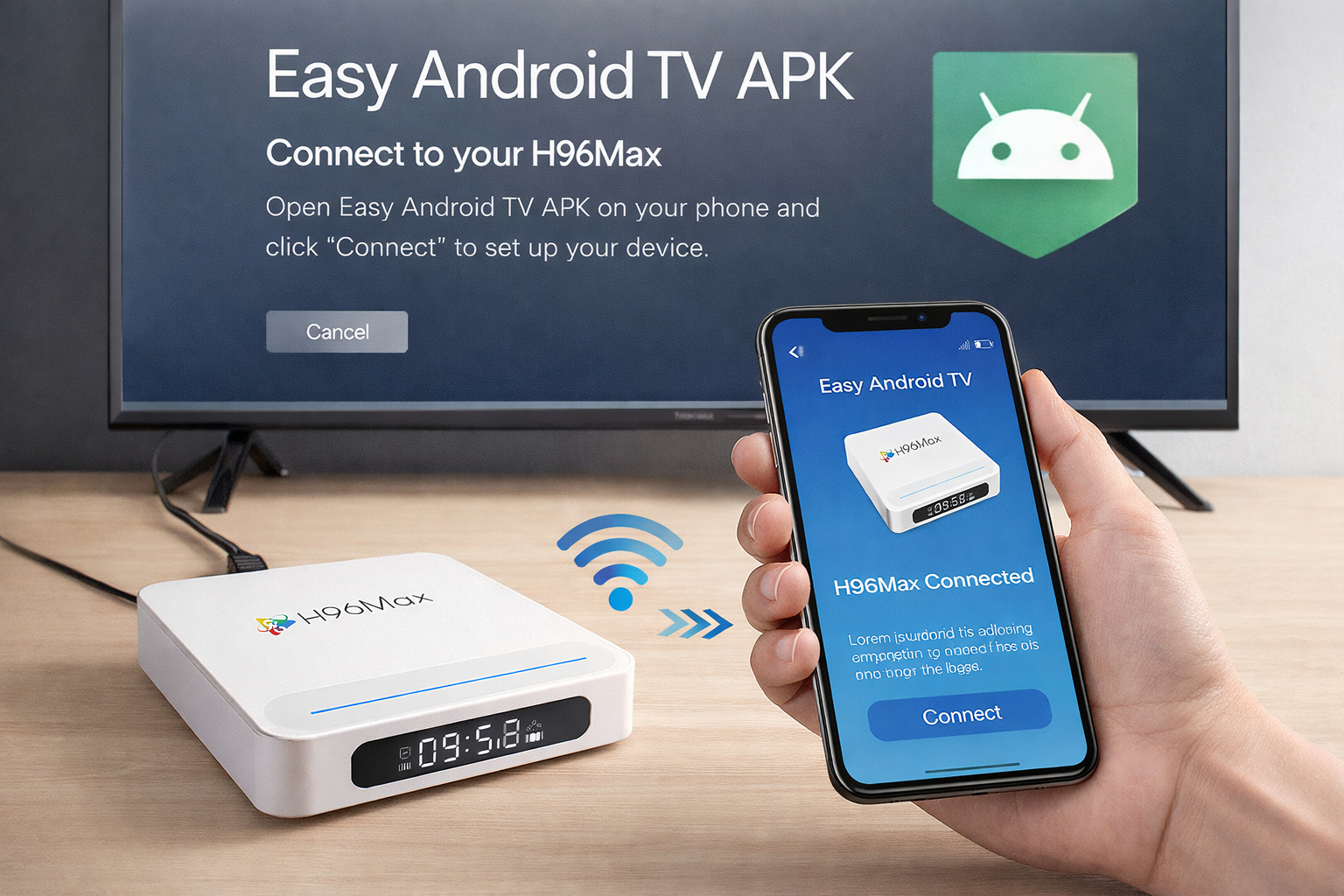
How to Quickly Install APKs to Android TV Box Using Your Phone
For advanced users and professionals working with Android TV boxes, knowing how to Install APK on Android TV box efficiently using a smartphone can significantly streamline the process of deploying, testing, and customizing devices. This guide offers a comprehensive and strictly technical walkthrough for the installation of APK files via mobile devices, covering the necessary prerequisites, recommended methods, and essential troubleshooting steps. By the end, you'll be able to handle complex deployment scenarios, apply best practices, and address potential challenges—all without the need for PC-based transfers.
Understanding the Basics of APK Installation on Android TV Box
Android TV boxes run on a customized version of the Android operating system, allowing users to install third-party applications outside the official Google Play Store. The process is known as sideloading, and it is particularly valuable when specific apps are unavailable in the Play Store or when deploying custom business solutions. The main focus here is on leveraging a mobile phone to handle APK file transfers, optimizing both speed and accessibility. The term "Install APK on Android TV box" encompasses several techniques, but the easiest way typically involves direct wireless or USB-based communication between the phone and the TV box.
Prerequisites and Preparations
Before initiating the installation, ensure your Android TV box is configured for APK sideloading. Start by enabling Developer Options and turning on Unknown Sources for your chosen file manager or browser app. On your phone, download the desired APK files from verified sources. Double-check compatibility between the APK and your TV box's hardware and Android version. This technical due diligence reduces the risk of failed installations or system instability.
Next, make sure both your phone and the Android TV box are connected to the same Wi-Fi network for optimal speed if you plan to use wireless transfer. Alternatively, a USB OTG cable or flash drive can provide a direct physical link. Whichever method you choose, the principle remains the same: transfer the APK file and initiate the installation directly from the Android TV interface.
Method 1: Wireless File Transfer Using File Manager Apps
One of the most efficient approaches for Android TV box APK install is through wireless file transfer applications that support SMB, FTP, or direct device-to-device communication. Popular file managers like File Commander, X-plore File Manager, or Send Files to TV make this process seamless.
Install the chosen file manager app on both the Android TV box and your smartphone.
On the TV box, open the app and enable file reception mode.
On the phone, select the APK file and use the “Send” or “Share” feature to locate the TV box on your network.
Transfer the file. After completion, use the TV remote to open and install the APK.
This method is ideal for users who frequently manage app deployments, providing speed and a high level of control. It’s also the recommended solution when deploying multiple APKs or conducting bulk installations across several devices.
Method 2: Installing APKs Using Cloud Storage Solutions
If you prefer cloud storage for your workflow, platforms like Google Drive, Dropbox, or OneDrive offer convenient integration. Simply upload the APK file from your phone to the chosen cloud drive, then access the drive via the Android TV box’s web browser or dedicated app.
Sign in to the cloud service on both devices.
On the TV box, download the APK file directly to local storage.
Use the file manager to locate and install the APK.
While this approach may add an extra step, it is excellent for remote deployments or when devices are not on the same local network. The main keyword, Install APK on Android TV box, remains central to this workflow, ensuring reliable and repeatable results.
Method 3: Using USB OTG or Flash Drive for APK Installation
For environments where wireless networks are restricted or unavailable, a USB OTG cable or flash drive can bridge your phone and the Android TV box. This approach guarantees maximum data integrity and speed, with minimal compatibility concerns.
Copy the APK file from your phone to a USB drive using a compatible OTG adapter.
Connect the drive to the Android TV box.
Open the TV box’s file manager, locate the APK, and proceed with installation.
This is the preferred solution for secure or enterprise environments and when deploying sensitive or proprietary applications. It also suits large-scale technical rollouts that require precision and repeatability.
How to Install Apps on Android Box via Phone: Troubleshooting and Advanced Tips
Despite the streamlined nature of these workflows, users may encounter permission errors, compatibility issues, or failed installations. Troubleshooting typically involves verifying file integrity, ensuring the latest firmware on the TV box, and confirming adequate free storage. In some cases, it may be necessary to clear the TV box’s app cache or reset the system to factory defaults.
Another tip is to use the adb (Android Debug Bridge) protocol. With basic networking knowledge, you can use a terminal app on your phone to connect to the TV box’s IP address and issue installation commands directly. This method offers deeper control for power users and enterprise deployments.
If your device prompts for an app permission or displays security warnings, always check the authenticity of the APK file source. Modern Android TV firmware provides robust security against unsigned or corrupted apps. For technical users, you can sign APKs yourself using Android Studio before transferring them for installation, ensuring system compatibility and reducing the risk of errors.
Comparing Wireless and Wired APK Installations
Choosing between wireless and wired APK installation methods depends on your environment, the volume of devices, and security requirements. Wireless transfers via network or cloud are faster for small and medium deployments, especially when you need to update apps on the fly. Wired installations, on the other hand, are favored for bulk technical deployments or when higher data transfer security is necessary.
For developers or IT managers managing multiple devices, combining both methods may offer the best balance of flexibility and control. For example, staging APKs on a cloud drive and then using USB for critical devices ensures redundancy and minimizes risks.
Best Practices for Sideload APK Android TV box
Regardless of the method chosen, always perform installations in a secure network environment. Regularly check for firmware and system updates on your Android TV box, as these can affect compatibility with new APK versions. Make backups of critical system data before performing bulk APK installations to prevent data loss in case of errors.
Technical users should document their installation procedures for consistency, especially in enterprise or OEM settings. Create standard operating procedures that specify app versions, transfer protocols, and post-installation validation steps. This not only streamlines future deployments but also helps maintain compliance with internal IT standards.
For advanced scenarios such as custom firmware deployment, integrating APK installation scripts into your build process can automate large-scale deployments. OEM and ODM businesses frequently leverage this capability for factory testing and pre-configuration, ensuring a seamless customer experience at scale.
Summary: How to Install APK Using Smartphone on Android TV Box
The Easiest way to sideload APKs to Android TV box involves choosing a method that aligns with your technical requirements and environment. From wireless transfers using dedicated apps, leveraging cloud storage, to using USB OTG for secure deployments, the workflow remains focused on maximizing reliability and minimizing complexity. The key is to follow structured procedures, stay up to date with the latest system updates, and always verify APK file authenticity. Whether you’re an IT professional, OEM/ODM engineer, or an advanced end user, mastering these workflows ensures successful, repeatable results for Android TV box app installation guide projects.
For additional support with factory provisioning, OEM / ODM service integration, custom firmware configuration, or bulk order technical assistance, consult with your manufacturer’s technical team to tailor solutions that fit your deployment needs.
READ MORE
Android TV Box Remote Recovery: 3 Fast Solutions for Not Working Issues
Comprehensive Guide to Resolving Android TV Box Error Messages
Android TV Box Voice Control Remote Setup: From Alexa, Google Assistant to Local Solutions
Android TV Box and TV Compatibility: Fine-Tuning Color, Output, and HDR
Top Setup Tips for the Best Android TV Box for Seniors and Kids
HDMI, CEC, and Resolution: Step-by-Step Guide for Home Theater Setup
New User’s Essential Guide: Complete Android TV Box First-Time Installation Process
Quick Links

.png "Watch H96 Max Android TV Box reviews on our YouTube channel")

.png "Explore H96 Max product photos on Instagram")